Running LLMs on Proxmox VE with GPU pass-through
Contents
Background
I have a gaming laptop, and whilst it is sometimes used for pew-pew delight, lately it has transcended such shackles by becoming what every graphically loaded laptop really wants to be – a Proxmox server running Linux VMs!
And with it becoming more trendy for renegade types to shun cloudy AI services for locally inferred goodness, I decided I wanted to run such models locally too. But I didn’t want to spend a lot of money, naturally. However, I already had a laptop with an alright GPU (NVIDIA RTX 5080 Mobile 16 GB) and was keen to run some of the latest smallish models at home.
Naturally the laptop runs Windows 11 normally, and my Proxmox environment is installed on an external SSD. This keeps it totally separate from the Windows installation, thus keeping the inevitable dodgy update from clobbering Proxmox one day.
Glow baby, glow

Yes, I probably could have turned off the pretty lights and protected my circadian rhythm. But sleep is overrated.
Hypervisor Preparation
Preparing the Proxmox environment for GPU pass-through roughly requires the following steps:
- Enable IOMMU if required - skip for newer kernels
- Blacklist GPU drivers
- Identify PCI IDs for the GPU
- Configure Virtual Function I/O (VFIO)
Then you can move on to configuring the guest.
1. Enable IOMMU (Intel CPUs)
Newer kernels (6.8+) do not require this step. For example, Proxmox VE 9.1.5 runs kernel 6.17.
# uname -r
6.17.9-1-pve
If you need to enable it, you can modify the kernel command line in the GRUB configuration (/etc/default/grub) by adding intel_iommu=on:
GRUB_CMDLINE_LINUX_DEFAULT="quiet intel_iommu=on"
Then:
# update-grub
# reboot
Verify IOMMU is enabled:
# dmesg | grep -e IOMMU
[ 0.038625] DMAR: IOMMU enabled
[ 0.097012] DMAR-IR: IOAPIC id 2 under DRHD base 0xfc810000 IOMMU 1
[ 0.222607] pci 0000:00:02.0: DMAR: Skip IOMMU disabling for graphics
2. Blacklist GPU drivers
In order for GPU pass-through to work, we need the host to not load any GPU drivers. This can be done by blacklisting the nvidia and nouveau modules:
# echo "blacklist nouveau
blacklist nvidia" > /etc/modprobe.d/blacklist.conf
3. Identify PCI IDs for the GPU
You need the PCI IDs and addresses for the GPU so you can inform VFIO what PCI devices to claim:
# lspci -nn | grep NVIDIA
01:00.0 VGA compatible controller [0300]: NVIDIA Corporation GB203M / GN22-X9 [GeForce RTX 5080 Max-Q / Mobile] [10de:2c59] (rev a1)
01:00.1 Audio device [0403]: NVIDIA Corporation Device [10de:22e9] (rev a1)
From the output:
- PCI addresses = 01:00.x
- PCI IDs = 10de:2c59 (GPU), 10de:22e9 (HDMI audio)
These will likely be different for your setup.
4. Configure Virtual Function I/O (VFIO)
VFIO is a Linux kernel feature which facilitates the passing of PCI devices down to VMs. It needs to be enabled:
# echo "vfio
vfio_iommu_type1
vfio_pci" > /etc/modules-load.d/vfio.conf
You also need to tell VFIO the PCI IDs of devices it should claim for its own:
# echo "options vfio-pci ids=10de:2c59,10de:22e9" >> /etc/modprobe.d/vfio.conf
Then update initramfs and reboot:
# update-initramfs -u
# reboot
You should then be able to verify that the devices are being claimed by VFIO:
# lspci -nnk | grep -A3 NVIDIA
01:00.0 VGA compatible controller [0300]: NVIDIA Corporation GB203M / GN22-X9 [GeForce RTX 5080 Max-Q / Mobile] [10de:2c59] (rev a1)
	Subsystem: ASUSTeK Computer Inc. Device [1043:3e18]
	Kernel driver in use: vfio-pci
	Kernel modules: nvidiafb, nouveau
01:00.1 Audio device [0403]: NVIDIA Corporation Device [10de:22e9] (rev a1)
	Subsystem: NVIDIA Corporation Device [10de:0000]
	Kernel driver in use: vfio-pci
	Kernel modules: snd_hda_intel
Notice Kernel driver in use: vfio-pci for both the GPU and HDMI audio devices.
Guest VM Preparation
1. Hardware
Since the GPU is a PCI Express device, the VM will need to use the q35 machine type (rather than i440fx which does not support a proper PCIe hierarchy and emulates PCIe devices over a PCI bus) and consequently also boot using UEFI. Configure the VM accordingly before installing the OS:
- Machine: q35
- CPU: host
- BIOS: OVMF (UEFI)
The PCI device should also be configured to be passed through:
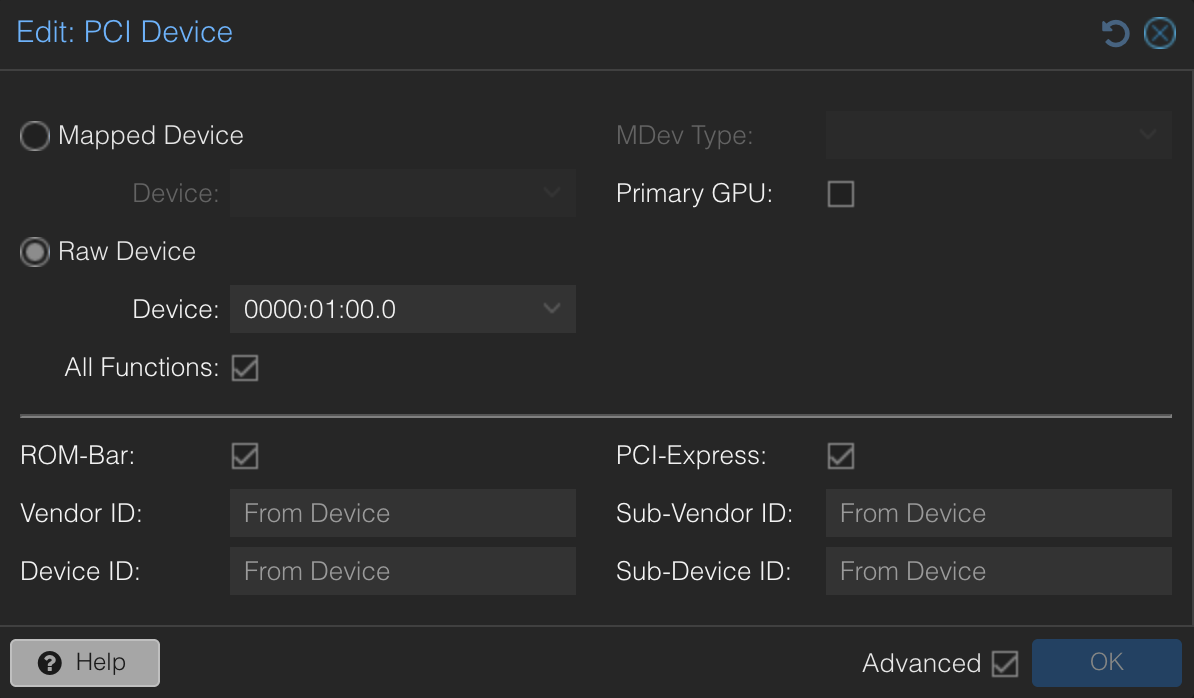
Configure:
- Raw Device: 0000:01:00.0
- Enable All Functions
- Enable ROM-Bar
- Enable PCI-Express
2. OS & Kernel
I installed Debian 12 but had to upgrade the kernel so it would support the graphics chipset I had. This required the use of the backports repository to get the latest version:
# echo "deb http://deb.debian.org/debian bookworm-backports main contrib non-free non-free-firmware" > /etc/apt/sources.list.d/backports.list
# apt update
# apt install -t bookworm-backports linux-image-amd64
3. Installing NVIDIA Drivers
Whilst I initially tried to use the proprietary NVIDIA drivers provided as part of Debian backports, I found that they were not recent enough to support the hardware so I had to grab the latest from NVIDIA directly. When presented with the option for using open vs. proprietary, I selected open (as it supports more recent hardware).
# apt install -y linux-headers-$(uname -r) build-essential pkg-config libglvnd-dev
# wget https://us.download.nvidia.com/XFree86/Linux-x86_64/570.144/NVIDIA-Linux-x86_64-570.144.run
# chmod +x NVIDIA-Linux-x86_64-570.144.run
# ./NVIDIA-Linux-x86_64-570.144.run
# reboot
Following installation, nvidia-smi can be used to check if the driver installed correctly and picked up the GPU:
Tue Mar 10 20:58:02 2026
+-----------------------------------------------------------------------------------------+
| NVIDIA-SMI 570.144                Driver Version: 570.144        CUDA Version: 12.8     |
|-----------------------------------------+------------------------+----------------------+
| GPU  Name                 Persistence-M | Bus-Id          Disp.A | Volatile Uncorr. ECC |
| Fan  Temp   Perf          Pwr:Usage/Cap |           Memory-Usage | GPU-Util  Compute M. |
|                                         |                        |               MIG M. |
|=========================================+========================+======================|
|   0  NVIDIA GeForce RTX 5080 ...    Off |   00000000:01:00.0 Off |                  N/A |
| N/A   45C    P4             25W /   80W |       0MiB /  16303MiB |      0%      Default |
|                                         |                        |                  N/A |
+-----------------------------------------+------------------------+----------------------+

+-----------------------------------------------------------------------------------------+
| Processes:                                                                              |
|  GPU   GI   CI              PID   Type   Process name                        GPU Memory |
|        ID   ID                                                               Usage      |
|=========================================================================================|
|  No running processes found                                                             |
+-----------------------------------------------------------------------------------------+
4. Installing Ollama
At this point we’re ready to test with an LLM!
# curl -fsSL https://ollama.com/install.sh | sh
# ollama run llama3.2
Using nvidia-smi -l while ollama is running, we can verify that the GPU is being utilised.
5. Installing Open WebUI
Now that ollama is up and running, I wanted to make use of Open WebUI to provide a friendly interface for chatting with the LLM. Now I have a totally offline form of ChatGPT!
The easiest way to get this installed was to run it through Docker and have it start with the system (via the --restart always option):
# docker run -d -p 3000:8080 \
    --add-host=host.docker.internal:host-gateway \
    -v open-webui:/app/backend/data \
    --name open-webui \
    --restart always \
    ghcr.io/open-webui/open-webui:main
To allow Open WebUI to reach Ollama, I needed to modify the ollama systemd service configuration to listen on all IPv4 interfaces so that the open-webui container can access it. Not the most secure setup, but fine for my lab.
Using systemctl edit ollama we can edit the service configuration and add the following:
[Service]
Environment="OLLAMA_HOST=0.0.0.0:11434"
Then reload the systemd daemon and restart the ollama service:
# systemctl daemon-reload
# systemctl restart ollama
Now Open WebUI should be able to reach Ollama.
Conclusion
This was a fun learning exercise. In particular, I learned how to pass through GPU devices from KVM-based hypervisors to Linux guests.
I’m still experimenting with the best models I can run given the limitations of my hardware. For now, I’ve gone with qwen3:14b. I also want to see if I can make use of it for assisting with code, potentially to aid with agentic workflows. But that’s for another day!